Keyboard Tester
Use this free keyboard tester to check every key online. Press each key and watch it turn green. The tester also catches keys that type twice, keys that stick, and keys that stop working when you press several at once.
Press any key on your keyboard to startEach key turns green once it works. Blue means it is held down right now.
Swipe sideways to see the whole keyboard. On a phone or tablet, connect a USB or Bluetooth keyboard to test it, because on-screen keyboards do not send real key codes.
Last key pressed
- event.key
- —
- event.code
- —
- keyCode
- —
- Location
- —
- Modifiers
- —
Key history
| Key | Code | keyCode | Held | |
|---|---|---|---|---|
| Your key presses will be listed here, newest first. | ||||
Everything runs in your browser. Nothing you type is saved or sent anywhere. The Fn key and some laptop media keys are handled by the keyboard itself and never reach the browser, so they cannot be tested here.
How to Use the Keyboard Tester
- Pick your layout. Choose Full-size if your keyboard has a number pad on the right, or No numpad for laptops and tenkeyless (TKL) keyboards.
- Press every key once. First, go row by row, from Esc and the F-keys down to the Space bar. As a result, each working key turns green on the diagram.
- Look for keys that stay grey. In other words, a key that stays grey after you press it is not sending a signal to your computer.
- Hold several keys together. Then press combinations you use often, such as W + A + Shift + Space for games, and check that every key lights up blue at the same time.
- Check the warnings. Finally, an orange key means it registered two presses when you pressed it once. The key history table shows exactly when it happened.
Press Reset test at any time to start again. The keyboard tester works with wired, wireless and Bluetooth keyboards, so you can repeat the test after cleaning or replacing a switch.
Reading Your Keyboard Tester Results
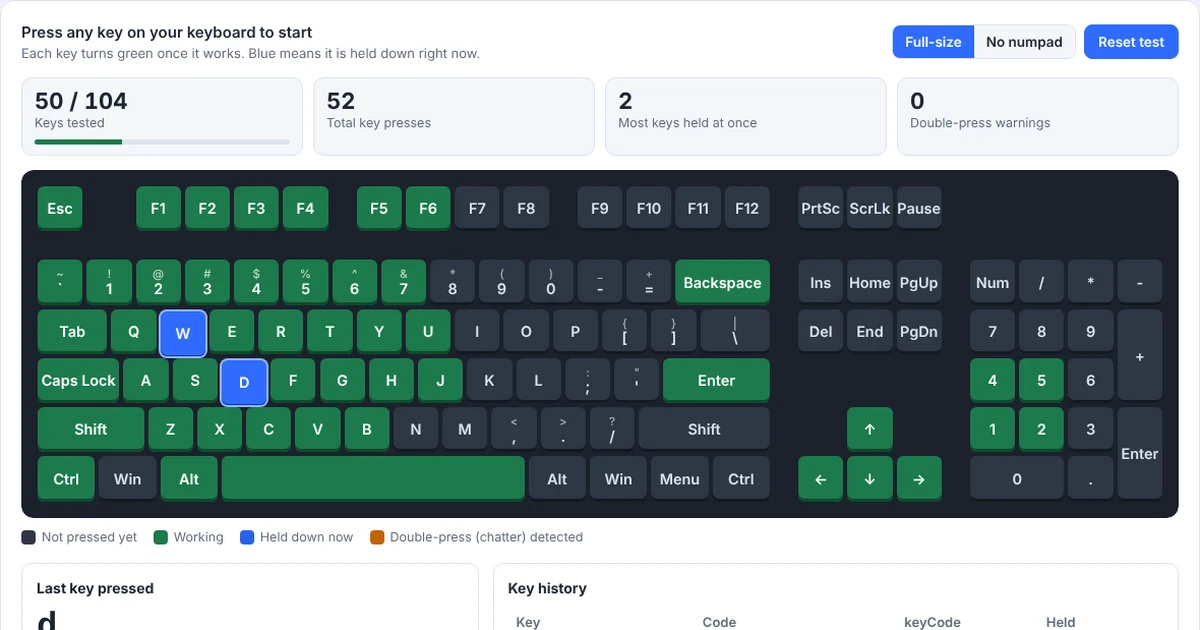
Here is what each color and number in the keyboard tester means:
- Grey key: not pressed yet, or pressed but not detected.
- Green key: the key works and your computer received it.
- Blue key: the key is being held down right now. So if a key stays blue after you let go, it may be physically stuck.
- Orange key: chatter detected. The key sent a second press within a few milliseconds of being released, which usually means a worn or dirty switch.
- Keys tested: how many keys on the diagram have worked so far, out of the total for your layout (104 for full-size, 87 without the numpad).
- Most keys held at once: the highest number of keys your keyboard reported at the same moment. This is your keyboard’s key rollover.
- Held: in the history table, how long each key was pressed, in milliseconds.
Common Keyboard Problems and How to Fix Them
A key does not work at all
If one key stays grey, first try it in another program to rule out a software setting. Next, clean under the key with compressed air. On a mechanical keyboard you can pull the keycap off with a keycap puller and check for dirt or a bent switch. If a whole row or block of keys fails together, the problem is usually the keyboard’s circuit or ribbon cable rather than the switches, and the keyboard may need repair or replacement.
A key types twice (keyboard chatter)
Chatter means your computer reads one press as two. This is especially common on older mechanical keyboards, particularly on the keys you use most, such as Space, E and Backspace. Fortunately, cleaning the switch often fixes it. Besides that, some keyboards have a “debounce time” setting in their software; raising it slightly can stop the double presses. However, if the problem continues, the switch needs replacing. On hot-swap keyboards that takes a minute.
You can adjust how strict the tester is with the Double-press warning setting. 50 ms catches most real chatter without flagging fast typing.
Keys type the wrong characters
If pressing @ gives you “, or the Z and Y keys are swapped, your keyboard works fine but your operating system is using the wrong layout. On Windows, check Settings → Time & language → Language & region. Likewise, on a Mac, check System Settings → Keyboard → Input Sources. Set it to the layout printed on your keys, such as US or UK.
A key looks stuck
If a key stays blue on the tester after you release it, the keycap or the frame may be catching it. First, press it firmly a few times and clean around it. After a spill, clean sticky keys properly before they cause corrosion, and unplug the keyboard first.
Some keys stop working when you press several together
This is called ghosting or key blocking, and it is a limit of the keyboard’s design rather than a fault. See the section below.
Laptop keyboard keys not working
Some laptops lock the number row, the numpad or the F-keys behind the Fn key or a function-lock setting. Therefore, check for an Fn Lock key (often marked with a padlock on Esc) and try pressing the key together with Fn. In addition, updating the keyboard driver from your laptop maker’s website fixes many problems.
Wireless keyboard misses key presses
Low batteries are the most common cause. So replace or charge them, move the receiver closer, and plug USB receivers into a port on the front of the computer or into a short extension cable. Also, metal desks and USB 3 ports can interfere with 2.4 GHz receivers.
Testing Ghosting and Key Rollover with the Keyboard Tester
Key rollover is how many keys a keyboard can send at the same moment (see rollover on Wikipedia). For example, most office keyboards handle only 2 or 3 keys reliably in some combinations. In contrast, gaming keyboards usually offer 6-key rollover (6KRO) or n-key rollover (NKRO), which lets you press every key at once.
To test it, hold down as many keys as you can. Watch the Most keys held at once number. After that, test the exact combinations you use:
- Gaming: W + A + Shift + Space, or W + D + Ctrl + R.
- Typing: fast letter pairs such as “th”, “er” and “ing” pressed with overlap.
- Shortcuts: Ctrl + Shift + any letter.
If one key in a combination does not turn blue in the keyboard tester, your keyboard is blocking it. Note that some USB keyboards limit rollover to 6 keys unless you turn on an NKRO mode in their software or with a key combination from the manual.
Using the Keyboard Tester as a Key Code Finder
The Last key pressed panel shows the values JavaScript receives for each key, which makes the keyboard tester a handy key code finder for developers:
- event.key is the character or key name, such as
"a","A"or"Enter". It changes with Shift and with the keyboard layout. - event.code is the physical key position, such as
KeyAorShiftLeft. Because it stays the same on every layout, it is the best choice for game controls. - keyCode is the older numeric code, such as 65 for A or 13 for Enter. Browsers have deprecated it, but many older scripts still use it.
- Location tells left and right keys apart (Left Shift vs Right Shift) and identifies numpad keys.
For the full list of key values, see the KeyboardEvent reference on MDN and the W3C keyboard code values.
Keys the Keyboard Tester Cannot Detect
The Fn key, and many laptop keys for brightness, volume, Wi-Fi or the keyboard backlight, work inside the keyboard or through the laptop’s firmware. As a result, they never send a signal to the browser, so no website can test them. Still, if those keys change the brightness or volume on your computer, they are working. Similarly, some browsers reserve a few shortcuts, such as Ctrl + W or Ctrl + T, that a web page is not allowed to block.
Frequently Asked Questions
Is this keyboard tester free?
Yes. In fact, it is completely free, with no sign-up, no download and no limit on how many times you use it.
Does the keyboard tester record what I type?
No. Instead, the test runs entirely in your browser. We do not save, log or send your key presses to any server, and the page clears everything when you close or reload it.
Can I use the keyboard tester on a laptop?
Yes. Choose the No numpad layout if your laptop has no number pad, then press every key. The Fn key and hardware keys for brightness or volume never reach the browser, so no website can detect them.
How do I know if my keyboard has ghosting?
Hold down several keys together and watch the diagram. If a key you are holding does not turn blue, the keyboard is blocking it. Also, test the combinations you actually use, because ghosting depends on which keys you press together.
Why does one key type two letters?
That is keyboard chatter, usually caused by dirt or a worn switch. The tester marks these keys orange. Fortunately, cleaning the switch fixes it in many cases; otherwise, the switch needs replacing.
Does it work with a Mac keyboard?
Yes. On a Mac, the diagram shows Cmd and Option in place of Win and Alt. You can test every standard key on an Apple Magic Keyboard or a MacBook.
Need a website or CRM set up for you?
Besides free tools, DgTrick also builds WordPress websites and GoHighLevel automations for growing businesses, so tell us what you need.