Microphone Test
Run a free microphone test to check that your mic works and sits at the right volume. Watch the live meter, then record a short clip to hear how you sound to others.
Test your microphone onlinePress Start microphone, allow access, then speak normally.
Record and play back
Record a short clip to hear exactly how you sound to others. Wear headphones to avoid echo.
Microphone details
- Microphone
- —
- Sample rate
- —
- Channels
- —
- Echo cancellation
- —
- Noise suppression
- —
- Auto gain
- —
- Mics found
- —
Settings
Turn this off to hear your microphone’s raw sound. Press Start microphone again to apply.
Everything runs in your browser. Your voice and recordings are never uploaded or saved on our server.
How to Use This Microphone Test
- Press Start microphone. First, your browser asks for permission to use the mic. Choose Allow.
- Speak at your normal volume. For example, say “Testing, one, two, three.” As you talk, the waveform and the level meter move.
- Check the input level. Next, the microphone test tells you whether your volume is Good, Too quiet, Too loud or Clipping.
- Record and play back. Then press Record 10 seconds, speak, and play the clip to hear exactly what others hear.
- Compare your mics. Finally, if you have a headset, a USB mic and a laptop mic, pick each one from the drop-down and compare them.
The whole microphone test takes less than a minute. Also, you can press Stop at any time to turn the mic off.
Reading Your Microphone Test Results
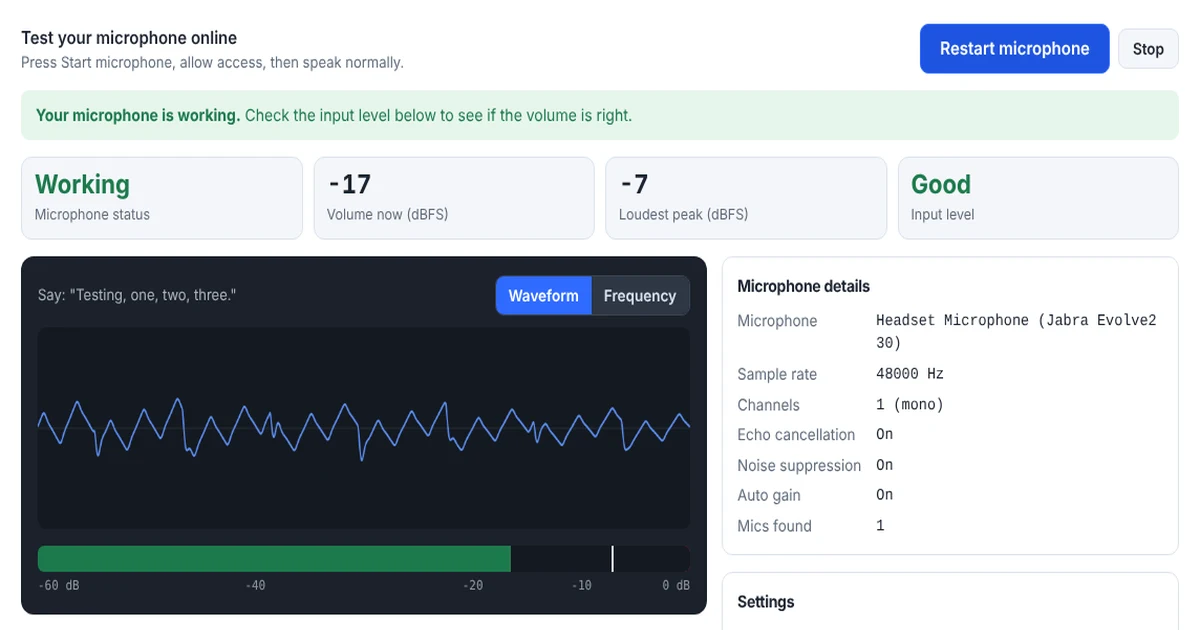
The meter shows your level in dBFS, which stands for decibels relative to full scale (see dBFS on Wikipedia). Because 0 dBFS is the loudest sound a microphone can record without distortion, all readings are negative:
- −60 to −40 dBFS: silence or background noise.
- −40 to −30 dBFS: very quiet. As a result, others will struggle to hear you.
- −30 to −12 dBFS: a good speaking level for calls and recordings.
- −12 to −3 dBFS: loud. However, this is fine for short peaks, such as laughing.
- Near 0 dBFS: clipping. In this case your voice sounds harsh and distorted, so lower the input volume or move back from the mic.
In addition, the white marker on the meter holds your most recent peak for a moment. That way, you can see your loudest moments while you talk.
Microphone Test Shows No Sound? Fixes That Work
Microphone test says “Microphone access was blocked”
First, click the microphone or padlock icon in the address bar, set Microphone to Allow, and reload the page. On Windows 11, then open Settings → Privacy & security → Microphone and turn on Microphone access and Let desktop apps access your microphone. Similarly, on a Mac, open System Settings → Privacy & Security → Microphone and turn on your browser.
The microphone test detects no sound
- First, check for a mute switch on your headset cable, a mute button on the mic, or a mic-mute key on your laptop (often F4 or F8).
- Next, make sure you picked the right mic in the drop-down. For example, Windows sometimes chooses a webcam or monitor microphone instead of your headset.
- On Windows, open Settings → System → Sound, select your mic under Input and check that its volume is not at 0.
- Likewise, on a Mac, open System Settings → Sound → Input, select your mic and raise the input volume.
- Finally, a 3.5 mm headset on a laptop with one combined jack may need a 4-pole (TRRS) plug or a splitter.
My voice is too quiet in the microphone test
First, raise the input volume in your system sound settings. Then move the mic closer: about a hand’s width from your mouth works well for a headset or desk mic. In addition, turning on Noise and echo reduction enables automatic gain, which raises quiet voices.
My voice sounds distorted or crackly
If the tool shows Clipping, your input is too loud (read more about audio clipping). So lower the input volume or move the mic further away. On the other hand, crackling at normal levels often means a loose cable or a damaged jack. To check, gently wiggle the cable while you watch the meter.
There is a hum or background noise
A steady hum usually comes from electrical interference. Therefore, move the mic cable away from power cables and chargers, or try another USB port. Meanwhile, you can reduce fan and room noise by turning on Noise and echo reduction, the same processing that Zoom, Teams and Meet use.
Others hear an echo
Echo happens when your speakers play the other person’s voice into your microphone. To stop it, use headphones, lower your speaker volume, or keep echo cancellation turned on.
Microphone Test with Raw Sound vs Call Processing
Video call apps clean up your audio with echo cancellation, noise suppression and automatic gain. This microphone test lets you hear both versions. To hear your mic’s raw sound, untick Noise and echo reduction and press Start microphone again. Most recording software captures this raw sound. So if the raw sound is good, the app’s settings cause any problem on calls, not the mic itself.
Is This Microphone Test Private?
Yes. The microphone test uses your browser’s standard audio feature, the getUserMedia API, which always asks for your permission first. In addition, your audio stays on your device: we never upload or store it. Finally, your recording disappears as soon as you leave the page.
Frequently Asked Questions
How do I hear myself on the microphone test?
Press Record 10 seconds, speak, and then press play on the recording. For the most accurate result, use headphones.
What is a good microphone level?
For speech, aim for about −30 to −12 dBFS, with peaks below −6 dBFS. In that range, the tool shows Good.
Can I run a microphone test on a Bluetooth headset?
Yes. First connect the headset, and then choose it in the microphone list. Note that many Bluetooth headsets switch to a lower-quality call mode when you use the mic, which is normal.
Why does my mic work in the microphone test but not in Zoom or Teams?
Each app has its own microphone setting. So open the app’s audio settings and select the same microphone that works in this test.
Does the microphone test work on a phone?
Yes. Simply open the page on your phone, press Start microphone and allow access. It then tests the phone’s built-in mic or a connected headset.
Need a website or CRM set up for you?
Besides free tools, DgTrick also builds WordPress websites and GoHighLevel automations for growing businesses, so tell us what you need.