Speaker Test
Run a free left and right speaker test for speakers and headphones. Check each stereo channel, sweep from deep bass to high treble, and test speaker polarity.
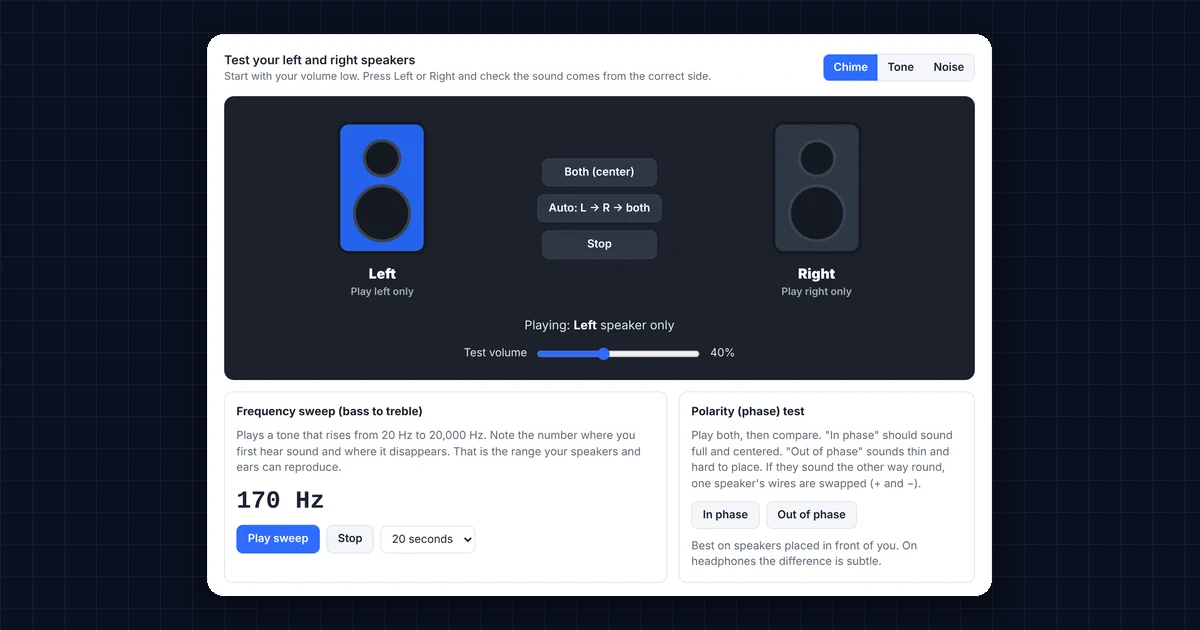
Test your left and right speakersStart with your volume low. Press Left or Right and check the sound comes from the correct side.
Frequency sweep (bass to treble)
Plays a tone that rises from 20 Hz to 20,000 Hz. Note the number where you first hear sound and where it disappears. That is the range your speakers and ears can reproduce.
Polarity (phase) test
Play both, then compare. “In phase” should sound full and centered. “Out of phase” sounds thin and hard to place. If they sound the other way round, one speaker’s wires are swapped (+ and −).
Best on speakers placed in front of you. On headphones the difference is subtle.
Sounds are generated in your browser. Keep the volume low at first, especially with headphones.
How to Use This Speaker Test
- Turn your volume down. First, lower the volume, especially if you wear headphones.
- Press Left. Next, listen: the sound should come only from your left speaker or the left ear of your headphones.
- Press Right. This time, the sound should come only from the right.
- Press Both (center). Then the sound should seem to come from the middle, between the speakers.
- Use Auto. Finally, Auto plays left, right and both in a loop, so you can adjust your speakers or walk around the room.
The speaker test offers three sounds. The Chime is easiest to place, while the Tone is a steady 440 Hz beep. In addition, Noise covers all frequencies, which helps you hear a weak or crackling speaker.
Reading Your Speaker Test Results
Stereo sound uses two separate channels, left and right (see stereophonic sound on Wikipedia). Here is what your speaker test results mean:
- Left plays on the left and right on the right: your speakers are connected correctly.
- Left and right are swapped: the cables sit in the wrong sides, the speakers stand the wrong way round, or a “swap channels” setting is on.
- Both sides play the same sound: in this case, your system or app uses mono audio.
- One side is silent: a cable, plug or speaker on that side is faulty, or the balance points to one side.
- One side is quieter: so check the balance setting first, and then the speaker itself.
Speaker Test Problems and How to Fix Them
The speaker test plays on one side only
- Check the balance. On Windows, open Settings → System → Sound, select your output device and check the left and right volume sliders. On a Mac, likewise, open System Settings → Sound → Output and center the balance slider.
- Turn off mono audio. On Windows, go to Settings → Accessibility → Audio → Mono audio. On a Mac, go to System Settings → Accessibility → Audio.
- Check the plug. A 3.5 mm plug that sits halfway in often plays on one side only. So push it in firmly, and clean the jack if needed.
- Test the cable. Finally, gently move the cable near the plug while sound plays. If the sound cuts in and out, the cable is damaged.
Left and right are reversed in the speaker test
For desk speakers, swap the speakers or the cables. For headphones, check that you wear them the right way, and look for the L and R marks. In addition, some sound drivers and audio apps have a “swap left/right channels” option.
Crackling or distortion
First, play the Noise sound at a moderate volume. Crackling at low volume points to a loose cable or a damaged speaker. By contrast, distortion only at high volume is normal for small speakers. On Windows, turning off sound enhancements in the device’s properties can also remove crackling.
The speaker test plays no sound at all
First, check that you picked the right output device (speakers, headphones, monitor or Bluetooth). Then check that the volume and the browser tab are not muted. Finally, press a button in the tool again, because browsers only play sound after you interact with the page.
Speaker Test Frequency Sweep: Bass and Treble
The sweep plays a tone that rises smoothly from 20 Hz (very deep bass) to 20,000 Hz (very high treble), and it shows the current frequency on screen.
- Where the sound starts shows how low your speakers can go. For example, laptop speakers often start around 150 to 200 Hz, desktop speakers around 60 to 80 Hz, and a subwoofer can reach 20 to 30 Hz.
- Where the sound stops is often the limit of your hearing rather than the speakers. Most adults hear up to about 14,000 to 17,000 Hz, and this limit drops with age (see hearing range on Wikipedia).
- Rattling at certain frequencies means something in the speaker or the room vibrates, such as a loose panel or an object on the desk.
Keep the volume moderate, though. Very low and very high frequencies can sound quiet, so if you turn the volume up for them, the middle of the sweep can get loud.
Speaker Test for Polarity (Phase)
Every loudspeaker has a positive (+) and a negative (−) wire. If you wire one speaker the wrong way round, it is “out of phase”: its cone moves out while the other moves in. As a result, bass partly cancels out and the sound loses its center.
To check, press In phase, and then Out of phase. With correct wiring, “In phase” sounds full and centered, while “Out of phase” sounds thin and seems to come from everywhere. If they sound the other way round, swap the + and − wires on one speaker.
Frequently Asked Questions
How do I run a left and right speaker test on headphones?
Put your headphones on with the volume low, and then press Left and Right. Each sound should play only in the matching ear.
Can I run the speaker test on Bluetooth speakers and earbuds?
Yes. First connect them and select them as your output device, and then run the test. Note that Bluetooth adds a short delay, so the sound may start a moment after you press the button.
Can this speaker test check 5.1 or 7.1 surround sound?
This tool tests the left and right stereo channels. Browsers mix surround sound down to stereo, so for 5.1 and 7.1, use the speaker test in your operating system’s sound settings instead.
Why can’t I hear the highest frequencies?
Human hearing above about 15,000 Hz fades with age, and many small speakers cannot play very high frequencies. In other words, this is normal.
Is the speaker test safe for my speakers?
Yes, at sensible volumes. However, avoid playing the sweep at maximum volume, because very low frequencies can push small speakers too hard.
Need a website or CRM set up for you?
Besides free tools, DgTrick also builds WordPress websites and GoHighLevel automations for growing businesses, so tell us what you need.