Webcam Test
Run a free webcam test before your next Zoom, Teams or Google Meet call. See a live preview, your camera's resolution and frame rate, and a lighting check in one click.
Check your webcam before a call or meetingPress Start camera and allow access when your browser asks.
Your camera preview will appear here. The video stays on your device and is never uploaded.
Camera details
- Camera
- —
- Resolution
- —
- Megapixels
- —
- Aspect ratio
- —
- Frame rate
- —
- Facing
- —
- Cameras found
- —
Maximum supported
- Max resolution
- —
- Max frame rate
- —
- Quality
- —
Everything runs in your browser. The camera feed and snapshots are never uploaded or saved on our server. Close this page or press Stop to turn the camera off.
How to Use This Webcam Test
- Press Start camera. First, your browser asks for permission to use the camera. Choose Allow.
- Check the preview. If you can see yourself, the camera works. As a result, the status box turns green and says Working.
- Read the details. Next, the webcam test shows the camera’s name, resolution, measured frame rate and the highest resolution it supports.
- Switch cameras if you have more than one. For example, a laptop camera and a USB webcam both appear in a drop-down next to the Start button.
- Take a snapshot. Finally, capture a still image at full quality and download it if you like.
The whole webcam test takes less than a minute. Also, you can press Stop at any time to turn the camera off.
Reading Your Webcam Test Results
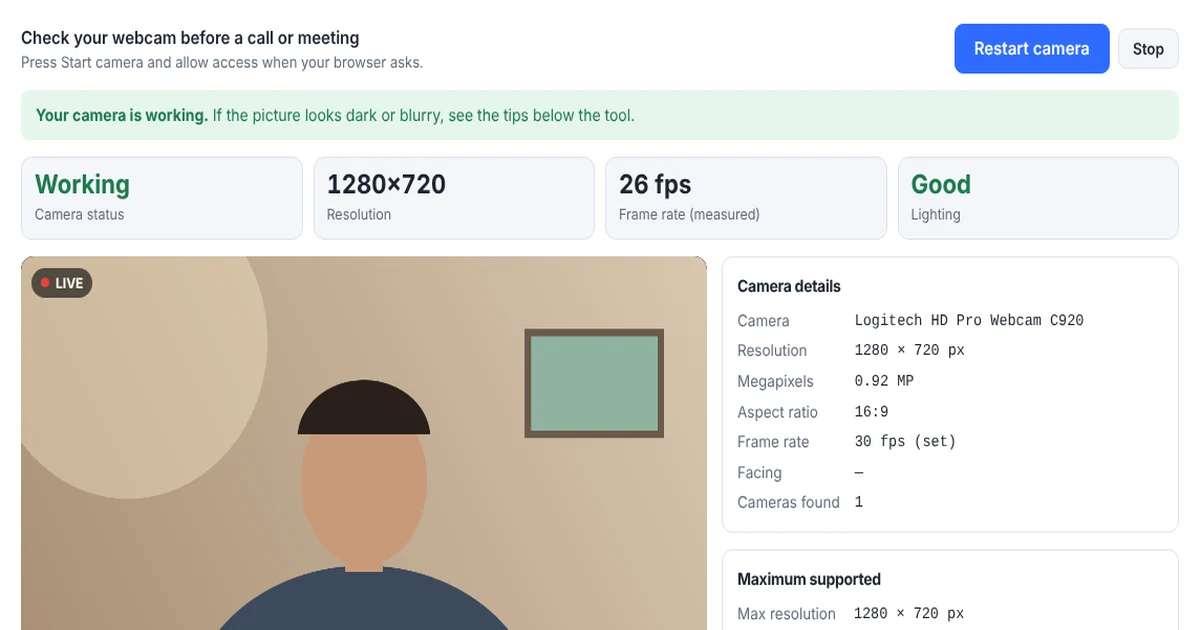
Here is what each result in the webcam test means:
- Resolution: the size of the picture your camera sends right now, for example 1280 × 720 (HD) or 1920 × 1080 (Full HD). However, browsers often start at a lower resolution to save bandwidth, so press Try highest resolution to see the best your camera can do.
- Frame rate (measured): how many pictures per second actually reach the browser. In general, 30 fps looks smooth on video calls, while anything below 15 fps looks choppy. You can read more about frame rate on Wikipedia.
- Lighting: the tool checks the brightness of the picture every second. So if it says Too dark, the light is probably behind you or the room is dim.
- Maximum supported: the highest resolution and frame rate your camera reports to the browser.
Webcam Not Working? Fixes for Common Webcam Test Errors
Webcam test says “Camera access was blocked”
In this case, your browser or computer does not allow the camera. First, click the camera or padlock icon at the left of the address bar, set Camera to Allow, and reload the page. On Windows 11, then open Settings → Privacy & security → Camera and turn on both Camera access and Let desktop apps access your camera. Similarly, on a Mac, open System Settings → Privacy & Security → Camera and turn on your browser.
Webcam test says “Your camera is being used by another app”
Most webcams only work with one program at a time. Therefore, close Zoom, Microsoft Teams, Skype, OBS, Discord or any other video app, including ones running in the system tray. After that, press Start camera again.
Webcam test says “No camera was found”
First, check the USB cable and try another port, preferably one directly on the computer rather than a hub. Besides that, many laptops have a privacy shutter over the lens, a physical switch on the side, or a function key (often F8 or F10 with a camera icon) that turns the camera off completely. Finally, open Windows Device Manager and look under Cameras or Imaging devices. If the webcam has a warning sign, reinstall the driver from the maker’s website.
The webcam test shows a black picture
A black image with a working status usually means that the lens shutter is closed or something covers the camera. So if the webcam test says Black image, slide the shutter open and check for a sticker or cover.
The picture is dark or grainy
Webcams need a lot of light. For this reason, face a window or a lamp so the light falls on your face, not behind you. Grainy video means the camera is raising its sensitivity in low light, so better light fixes it.
The video is blurry
Wipe the lens with a soft cloth, because fingerprints are the most common cause. In addition, some webcams have a manual focus ring. Also check the resolution: at 640 × 480, the picture looks soft on a large screen.
The video is choppy or the frame rate is low
In low light, many webcams drop their frame rate to get a brighter picture, so add light first. Then close other programs that use the camera or the processor, and plug USB webcams into a USB 3 port.
My image is mirrored
The preview shows a mirror image by default, because that feels natural, like looking in a mirror. However, other people on a call see you the right way round. To see what they see, untick Mirror preview.
What Resolution Should Your Webcam Test Show?
- 480p (640 × 480): older or budget webcams. This is fine for small video windows.
- 720p HD (1280 × 720): most laptop cameras. In practice, this is good enough for most video calls.
- 1080p Full HD (1920 × 1080): the standard for good external webcams, streaming and recording.
- 4K (3840 × 2160): premium webcams. This is useful for cropping and digital zoom, although video call apps usually send 1080p or less anyway.
Keep in mind that Zoom, Teams and Meet adjust the quality to your internet speed. As a result, the picture others see may be lower than what this webcam test shows. For more background, see the webcam article on Wikipedia.
Is This Webcam Test Safe?
Yes. The webcam test uses your browser’s standard camera feature, the getUserMedia API, which always asks for your permission first. In addition, the video stays on your device: we never record, upload or store it. Finally, the camera turns off as soon as you press Stop or close the page.
Frequently Asked Questions
Is this webcam test private?
Yes. Your browser processes the video on your own device. We do not record, upload or store anything, and the camera turns off when you press Stop or close the page.
Why does my browser ask for camera permission?
Browsers always ask before a website can use your camera, because this protects your privacy. In this case, the permission only lets this page show you a preview.
Can I run the webcam test on my phone?
Yes. Open this page on your phone and press Start camera. Then, if your phone has a front and a back camera, choose between them in the drop-down.
How do I check my webcam’s megapixels with this test?
The webcam test shows the megapixels of the current picture. Then press Try highest resolution to see the most your camera can capture in the browser.
Why is my webcam frame rate lower than advertised?
Many webcams lower their frame rate in dim light, and some only reach 60 fps at lower resolutions. So improve the lighting first, and then check the frame rate again.
Does the webcam test work with an external USB webcam?
Yes. Simply plug in your webcam, press Start camera, and pick it from the camera list if your computer also has a built-in camera.
Need a website or CRM set up for you?
Besides free tools, DgTrick also builds WordPress websites and GoHighLevel automations for growing businesses, so tell us what you need.