Dead Pixel Test
Run a free dead pixel test on any monitor, laptop, TV or phone. Ten full-screen colors reveal dead, stuck and hot pixels, and a built-in fixer can revive stuck ones.
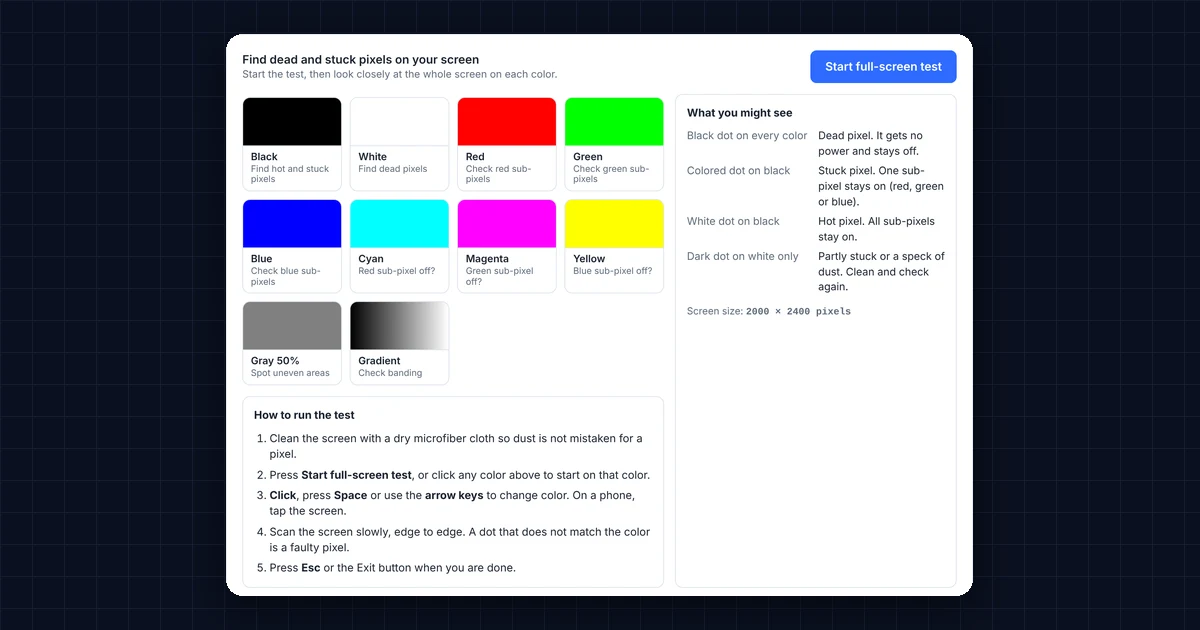
Find dead and stuck pixels on your screenStart the test, then look closely at the whole screen on each color.
How to run the test
- Clean the screen with a dry microfiber cloth so dust is not mistaken for a pixel.
- Press Start full-screen test, or click any color above to start on that color.
- Click, press Space or use the arrow keys to change color. On a phone, tap the screen.
- Scan the screen slowly, edge to edge. A dot that does not match the color is a faulty pixel.
- Press Esc or the Exit button when you are done.
What you might see
- Black dot on every color
- Dead pixel. It gets no power and stays off.
- Colored dot on black
- Stuck pixel. One sub-pixel stays on (red, green or blue).
- White dot on black
- Hot pixel. All sub-pixels stay on.
- Dark dot on white only
- Partly stuck or a speck of dust. Clean and check again.
Screen size:
Stuck pixel fixer (flashing colors)
Warning: this shows rapidly flashing colors. Do not use it if you or anyone watching has photosensitive epilepsy or is sensitive to flashing lights. It can sometimes revive a stuck pixel. It cannot fix a dead (black) pixel.
Drag the square over the stuck pixel and leave it running for 10 to 20 minutes.
Everything runs in your browser. Press Esc at any time to leave full screen.
How to Run a Dead Pixel Test
- Clean the screen. First, wipe it with a dry microfiber cloth, because dust and smudges can look like dead pixels.
- Press Start full-screen test. Next, your screen fills with black.
- Scan the whole screen slowly. Check the corners and edges too. Sit at your normal distance first, and then lean in closer.
- Change the color. Click or press Space to move to the next color. Go through all ten: black, white, red, green, blue, cyan, magenta, yellow, gray and a gradient.
- Exit the test. Finally, press Esc or the Exit button when you finish.
On a phone or tablet, simply tap the screen to change colors. In addition, turn the brightness up, because that makes faulty pixels easier to see during the dead pixel test.
Reading Your Dead Pixel Test Results
Each pixel on an LCD or OLED screen has three tiny sub-pixels: red, green and blue (see pixel on Wikipedia). Problems happen when one or more of them stop responding. Here is what you might see during the dead pixel test:
- Dead pixel: a black dot that stays black on every color, because the pixel gets no power. You can spot it most easily on the white screen.
- Stuck pixel: a dot that stays red, green, blue or a mix of them, because one or two sub-pixels stay on. By contrast, you can spot it most easily on the black screen.
- Hot pixel: a white dot that stays bright on dark backgrounds, because all three sub-pixels stay on.
- Dust or a mark: a gray or fuzzy dot that moves or disappears after cleaning. It may also look different when you change your viewing angle.
The single-color screens also help you find out which sub-pixel is faulty. For example, a dot that looks black on the red screen but normal on green and blue has a dead red sub-pixel. You can read more about defective pixels on Wikipedia.
Dead Pixel Test Found a Stuck Pixel? How to Fix It
You can sometimes revive a stuck pixel, while a dead pixel usually stays dead. So try these steps in order:
- Use the stuck pixel fixer. It flashes random colors very fast over the stuck pixel, which can “wake up” a sub-pixel that stays on. Drag the flashing square over the pixel and leave it running for 10 to 20 minutes. Repeat a few times if needed. However, read the flashing-light warning first.
- Turn the screen off. Then leave it off for several hours and check again, because a stuck pixel sometimes clears on its own.
- Apply gentle pressure (for LCD screens only, at your own risk). Turn the screen off, wrap a fingertip in a soft cloth, press very lightly on the spot, and turn the screen on while you still press. Never press hard, and never do this on an OLED or a phone screen.
If none of this works, check the warranty, because a pixel fault is a hardware defect.
Is the dead pixel test fixer safe for people?
The flashing colors cannot damage a screen. However, they can affect people with photosensitive epilepsy. For this reason, the fixer only starts after you confirm the warning, and you can stop it at any time with Esc.
Dead Pixel Test Results and Your Warranty
Most monitor makers follow a “pixel policy” based on the ISO 9241-307 standard (part of ISO 9241). It sets how many faulty pixels a screen can have before it counts as defective. Many brands only replace a monitor that has several dead or stuck pixels, while others offer a “zero bright dot” guarantee. So before you contact the seller:
- Note how many faulty pixels the dead pixel test found, their color, and where they sit on the screen.
- Take a photo of each one on the color where it shows most clearly.
- Check the seller’s return policy. Many stores accept returns for any reason in the first 14 to 30 days, which is easier than a warranty claim.
Dead Pixel Test for a Used Screen Before You Buy
When you buy a used monitor, laptop or phone, open this page on the device and run through all the colors. In addition, look for these problems:
- Backlight bleed: bright patches at the edges on the black screen (LCD screens).
- Burn-in: faint shapes of old images, such as a taskbar or logo, on the gray screen (OLED screens).
- Uneven color: darker or tinted areas on the white and gray screens.
- Banding: visible steps instead of a smooth fade on the gradient screen.
Frequently Asked Questions
Which color is best for a dead pixel test?
White shows dead (black) pixels best, while black shows stuck and hot pixels best. In addition, red, green and blue help you find single faulty sub-pixels.
Does the stuck pixel fixer really work?
It sometimes works on stuck pixels, especially ones that appeared recently. However, it cannot repair dead pixels, because those get no power at all.
Can I run the dead pixel test on my phone or TV?
Yes. Open the page in your phone’s browser or your smart TV’s browser, and then start the test. On a TV, use the remote’s arrow keys to change colors.
Are a few dead pixels normal?
Many brands accept a small number of faulty pixels on a new screen under their pixel policy. Still, more and more brands offer zero-defect guarantees. So if a faulty pixel bothers you, return the screen within the store’s return window.
Why does full screen not work on my iPhone?
Safari on iPhone does not let websites go fully full screen. Instead, the test fills the browser window. For the biggest test area, turn the phone sideways and scroll to hide the address bar.
Need a website or CRM set up for you?
Besides free tools, DgTrick also builds WordPress websites and GoHighLevel automations for growing businesses, so tell us what you need.