WebP to PNG Converter
Use this free WebP to PNG converter to turn WebP images into PNG files in seconds. Transparency is kept, you can convert many images at once, and nothing is uploaded.
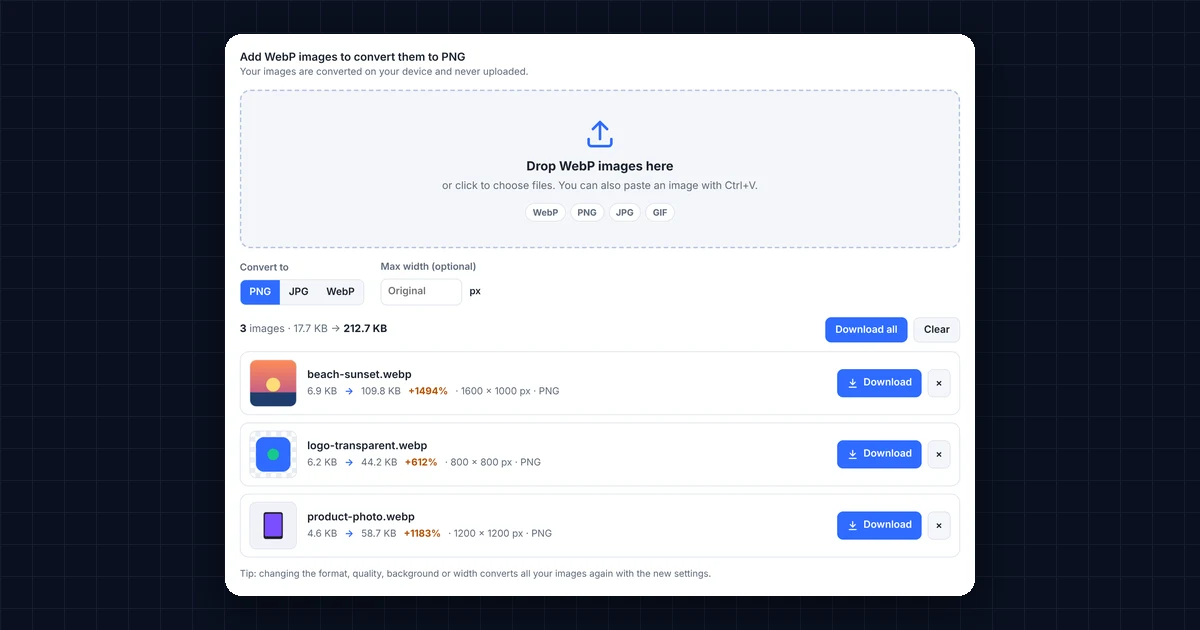
Add WebP images to convert them to PNGYour images are converted on your device and never uploaded.
Converted images will appear here, ready to download.
Tip: changing the format, quality, background or width converts all your images again with the new settings.
How to Convert WebP to PNG
- Add your WebP images. First, drop them onto the box above, click it to choose files, or paste an image with Ctrl+V. You can add several at once.
- Check the format. PNG is already selected. However, you can switch to JPG or WebP if you need a smaller file.
- Resize if needed. Next, enter a maximum width to make large images smaller, or leave it empty to keep the original size.
- Download your PNG files. Finally, click Download next to each image, or Download all to save every file.
The WebP to PNG converter works on your own device, so your images are never uploaded. As a result, it is fast, private and works even with photos you would not want to send anywhere.
Why Convert WebP to PNG?
WebP is a modern image format made by Google for fast websites (see Google’s WebP documentation). However, many apps and websites still don’t accept it. Here are the most common reasons to convert WebP to PNG:
- The image won’t open. Some older photo editors, Windows Photo Viewer and many print shops can’t open WebP files.
- An upload form rejects it. For example, job sites, government forms and some marketplaces only accept PNG or JPG.
- You need transparency. PNG keeps transparent backgrounds, which makes it the best choice for logos, icons and stickers.
- You want to edit the image. PNG is lossless, so editing and saving it again won’t reduce its quality.
WebP vs PNG: Which Should You Use?
| Feature | WebP | PNG |
|---|---|---|
| File size | Very small | Larger |
| Quality | Lossy or lossless | Always lossless |
| Transparency | Yes | Yes |
| Works in older apps | Sometimes | Almost everywhere |
| Best for | Websites and fast pages | Logos, screenshots and editing |
In short, keep WebP for your website, and convert WebP to PNG when you need to open, edit, print or upload the image somewhere that doesn’t support WebP. You can read more about the format in the PNG article on Wikipedia.
Why Is My PNG File Bigger Than the WebP?
This is normal. WebP compresses images much more than PNG does, so the same picture often becomes three to six times larger as a PNG. The image quality doesn’t get worse, though. In fact, PNG stores every pixel exactly.
If the file is too large, try one of these:
- Switch to JPG in the converter if you don’t need a transparent background. JPG files are much smaller for photos.
- Set a maximum width, such as 1,200 pixels, to make the image smaller.
- Compress it afterwards with an image compressor.
Frequently Asked Questions
Is this WebP to PNG converter free?
Yes. It’s completely free, with no sign-up, no watermark and no limit on how many images you convert.
Are my images uploaded to a server?
No. Instead, your browser converts the images on your own device, so they never leave your computer or phone.
Does converting WebP to PNG keep transparency?
Yes. Transparent areas stay transparent in the PNG file. However, if you switch to JPG, transparent areas are filled with the background color you choose.
Can I convert several WebP images at once?
Yes. Simply add several files together, and then click Download all to save every PNG.
Does it work on iPhone and Android?
Yes. The converter works in Safari, Chrome, Edge and Firefox on phones, tablets and computers.
Need a website or CRM set up for you?
Besides free tools, DgTrick also builds WordPress websites and GoHighLevel automations for growing businesses, so tell us what you need.