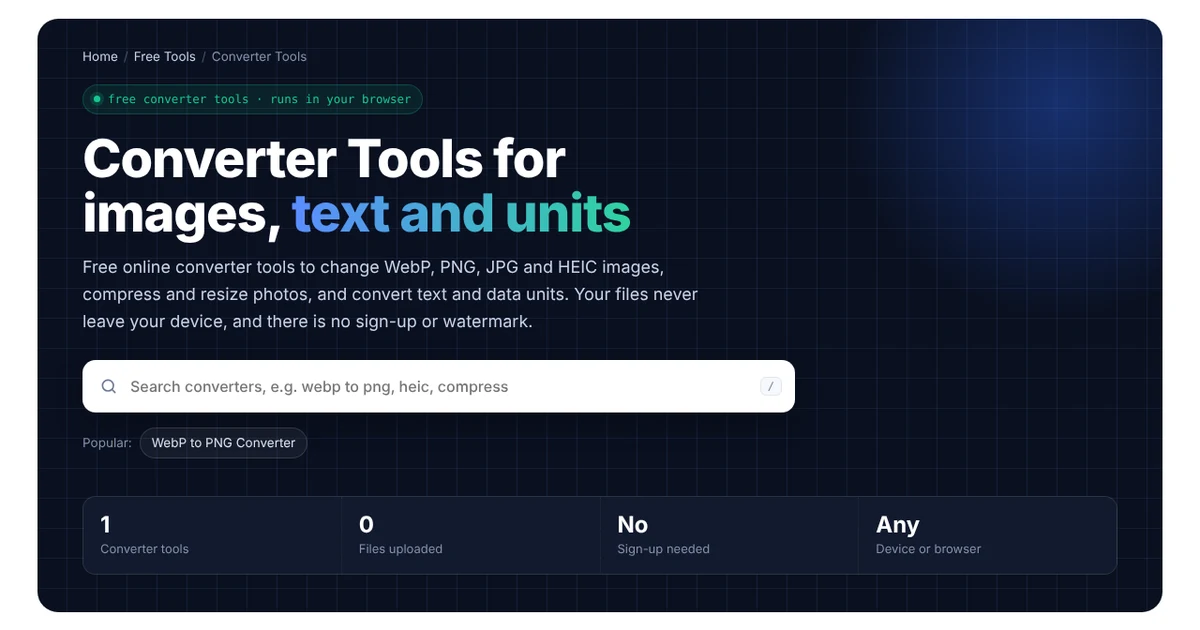
Converter Tools for images, text and units
Free online converter tools to change WebP, PNG, JPG and HEIC images, compress and resize photos, and convert text and data units. Your files never leave your device, and there is no sign-up or watermark.
Popular tools
All converter tools
Every converter tool in one place. Use the search above to filter.
Three steps, no setup
Pick a converter
Search or browse the list, and then open the converter for your file type.
Add your files
Drop images onto the page or choose them from your device. You can add several at once.
Download the result
Finally, check the preview and file size, and then download the converted file.
Private by design
The converters run on your own device using standard browser features. Your images and text are never uploaded, stored or seen by anyone, so when you close the page, they are gone.
Which Converter Tool Do You Need?
- A WebP image won’t open or upload: first convert it with the WebP to PNG Converter (keeps transparency) or the WebP to JPG Converter (smallest file).
- An iPhone photo shows as HEIC: use the HEIC to JPG Converter, so it opens on Windows and uploads to any website.
- A PNG file is too large: convert it with the PNG to JPG Converter, or shrink it with the Image Compressor.
- Your website loads slowly: convert your photos with the Image to WebP Converter, and then resize them with the Image Resizer.
- You need text or numbers changed: the Case Converter changes capital letters, while the Data Storage Converter turns MB into GB and back.
How These Converter Tools Work
Every converter tool runs directly in your browser. When you add an image, your browser decodes it, redraws it and saves it in the new format, all on your own device. As a result, your files are never uploaded to a server, so the tools are fast and private, and they work for photos you wouldn’t want to send anywhere.
You can also convert several images at once and download them one by one or together. However, very large images (over about 50 megapixels) may be slow on older phones, so use a computer for those.
Image Converter Tools for WebP, PNG, JPG and HEIC
Each image format has a different job. Here is how they compare, so you can pick the right one:
| Format | Best for | Transparency | File size |
|---|---|---|---|
| JPG | Photos, email, printing | No | Small |
| PNG | Logos, screenshots, graphics with text | Yes | Large |
| WebP | Websites and fast-loading pages | Yes | Smallest |
| HEIC | iPhone photos (storage) | Yes | Small |
For example, WebP files are usually much smaller than JPG or PNG files of the same quality (see Google’s WebP documentation). That’s why many websites now serve WebP images. Older apps, however, still expect JPG or PNG, which is when a converter helps.
Converter Tools for Text and Units
Besides images, the converter tools also handle everyday text and number jobs:
- Case Converter: turns text into UPPERCASE, lowercase, Title Case or sentence case, which is useful when a heading was typed with Caps Lock on.
- Data Storage Converter: converts bytes, KB, MB, GB and TB. It also explains why a “1 TB” drive shows as about 931 GB on your computer, because drive makers use decimal units while Windows uses binary ones (see gigabyte on Wikipedia).
Tips for Using Converter Tools
- Keep the original. Converting to JPG or WebP removes some detail, so save your original file first.
- Use PNG for logos. JPG adds blurry edges around text and sharp lines, whereas PNG keeps them crisp.
- Pick a quality of 80 to 85%. For most photos, this gives a much smaller file with no visible difference.
- Resize before you upload. A phone photo is often 4,000 pixels wide, while most websites only need 1,200 to 2,000.
Frequently Asked Questions
Are these converter tools really free?
Yes. Every converter tool is free to use, with no sign-up, no watermark and no limit on the number of files.
Are my files uploaded to a server?
No. Instead, the conversion happens in your browser, so your images and text never leave your device.
Will converter tools reduce image quality?
Converting to PNG keeps full quality. Converting to JPG or WebP, however, compresses the image, so choose a quality of 80% or more to keep it looking sharp.
Do the converter tools work on a phone?
Yes. They work in Chrome, Safari, Edge and Firefox on phones, tablets and computers.
Can converter tools handle several images at once?
Yes. Simply add several files, and the converter processes them one after another.
Need a website or CRM set up for you?
Besides free tools, DgTrick also builds WordPress websites and GoHighLevel automations for growing businesses, so tell us what you need.