Refresh Rate Test
Run a free refresh rate test to see your monitor's real Hz in seconds. Check frame timing and stutter, and make sure your 120, 144 or 240 Hz screen runs at full speed.
Check your monitor’s refresh rateMeasuring starts automatically. Keep this tab in front and the mouse still for a few seconds.
Measuring
Motion smoothness test
Watch the blocks. At a high refresh rate the fast ones still look sharp; at 60 Hz they blur and jump.
Display details
- Closest standard rate
- —
- Screen resolution
- —
- Pixel ratio
- —
- Browser
- —
The browser can only draw as fast as your monitor refreshes, so this test reads your real refresh rate. Battery saver mode, a background tab or a remote desktop session can lower the result.
How the Refresh Rate Test Works
Your browser draws a new frame each time your screen refreshes (see requestAnimationFrame on MDN). So the refresh rate test counts these frames for about three seconds, measures the time between them, and works out your refresh rate. Then it shows the closest standard rate, such as 60, 144 or 165 Hz.
- Keep this tab in front. First, avoid moving the mouse or switching tabs while the test measures.
- Read your result. Next, check the big number at the top of the tool.
- Measure again when needed. Finally, press Measure again after you change a setting or move the browser to another monitor.
Reading Your Refresh Rate Test Results
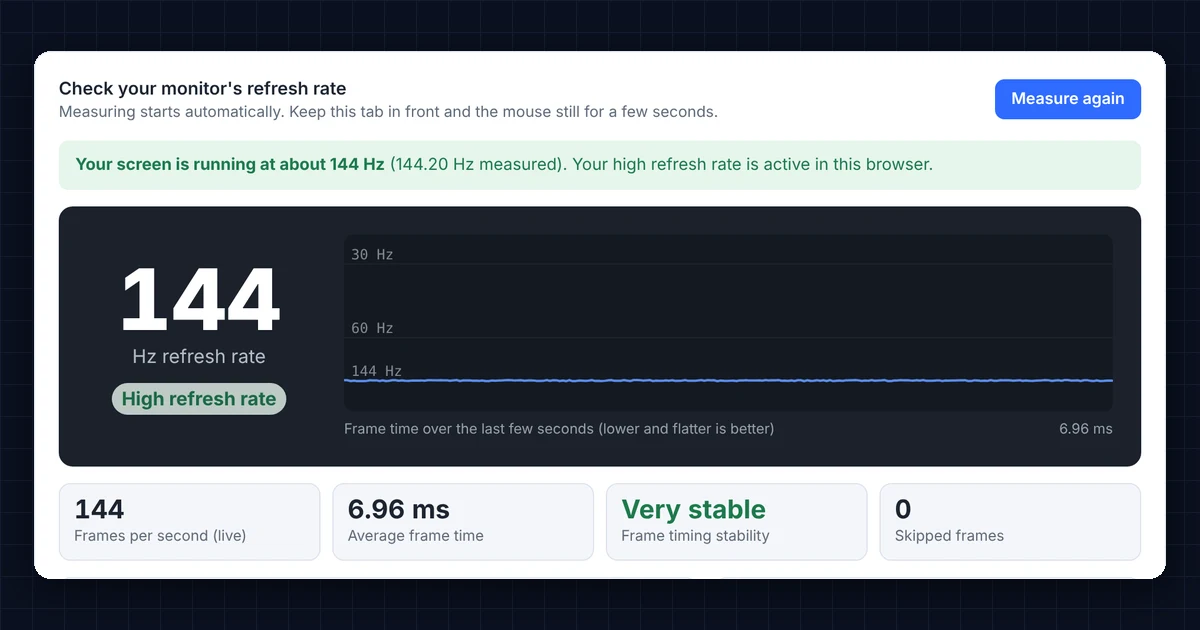
Here is what each number in the refresh rate test means:
- Hz refresh rate: how many times per second your screen updates. In general, a higher number means smoother motion (see refresh rate on Wikipedia).
- Frames per second (live): the frame rate right now. Ideally, it matches the refresh rate.
- Average frame time: the time between frames. For example, 60 Hz is 16.7 ms, 144 Hz is 6.9 ms and 240 Hz is 4.2 ms.
- Frame timing stability: how evenly frames arrive. “Unstable” means some frames came late, which looks like stutter.
- Skipped frames: frames the computer missed because it was busy. A few are normal, but many point to a performance problem.
In addition, the frame-time chart shows each frame as a point. A flat line means smooth motion, while spikes are stutters.
Refresh Rate Test Shows Only 60 Hz? How to Fix It
This is very common with new high-refresh monitors. So check these steps in order.
1. Set the refresh rate in your operating system
Windows 11: open Settings → System → Display → Advanced display, select the monitor and choose the highest rate under Choose a refresh rate. Windows 10: open Settings → System → Display → Advanced display settings. Similarly, on a Mac, open System Settings → Displays and pick the rate under Refresh rate.
2. Use the right cable and port
Older or basic cables limit the refresh rate. Therefore, use DisplayPort or a high-speed HDMI 2.0/2.1 cable, ideally the one that came with the monitor. On a desktop PC, also plug the cable into the graphics card, not the motherboard ports.
3. Check the monitor’s own menu
Some monitors need an overclock or a high-refresh mode turned on in their on-screen menu. Others need DisplayPort set to version 1.2 or higher.
4. Update the graphics driver
Next, install the latest driver from NVIDIA, AMD or Intel. Their control panels also have a refresh rate setting.
5. Check battery saver and browser settings
Laptops often drop to 60 Hz on battery to save power. So plug in, or change the power mode. In some browsers, turning off “hardware acceleration” can also limit the frame rate, so make sure it is on. Then run the refresh rate test again.
Refresh Rate Test vs Frame Rate: What Is the Difference?
The refresh rate (Hz) is how often your monitor can show a new image. By contrast, the frame rate (fps) is how many images your computer or game produces. For example, to benefit from a 144 Hz monitor in a game, the game also needs to run at around 144 fps. In this browser refresh rate test, the two match, because the browser draws one frame for every refresh.
If your monitor supports G-Sync, FreeSync or another variable refresh rate (VRR), the rate can change to match the game. In that case, the browser test usually shows the monitor’s maximum rate.
Common Refresh Rates Your Test May Show
- 60 Hz: the standard for office monitors, most laptops and TVs.
- 75 Hz: budget monitors, slightly smoother than 60 Hz.
- 120 Hz: many gaming laptops, newer phones, the iPad Pro and many TVs.
- 144 Hz and 165 Hz: the most popular gaming monitor rates.
- 240 Hz and above: competitive esports monitors.
Frequently Asked Questions
How accurate is this refresh rate test?
It is very accurate when the tab is in front and the computer is not busy. Typically, the result is within 1 Hz of the real rate. However, results can be lower if the browser slows itself down, for example on battery saver.
Why does the test show 59 or 119 Hz instead of 60 or 120?
Many displays run at 59.94 or 119.88 Hz, a standard that comes from television. That is why the tool shows both the measured value and the closest standard rate.
I have two monitors. Which one does the refresh rate test check?
It checks the monitor that shows the browser window. So drag the window to the other monitor and press Measure again.
Can I run the refresh rate test on my phone?
Yes. Simply open this page on your phone. Many phones lower their refresh rate when nothing moves, though, so scroll or touch the screen briefly and press Measure again.
Why is my result lower than my monitor’s maximum?
Usually, the monitor is set to a lower rate, the cable cannot carry the full rate, a power-saving mode is on, or the browser limits its frame rate. See the fixes above.
Need a website or CRM set up for you?
Besides free tools, DgTrick also builds WordPress websites and GoHighLevel automations for growing businesses, so tell us what you need.