A 144Hz or 165Hz monitor makes everything smoother, from scrolling to fast games. But many people use one for months at 60Hz without knowing it, because Windows or the cable quietly limits it. A refresh rate test shows the real number your screen is running at right now. This guide explains how to check monitor refresh rate with a free test, what the result means and how to unlock the full refresh rate.
Quick answer
- A refresh rate test measures how many frames per second your browser can show
- New monitors often start at 60Hz until you change the setting
- The cable matters: some HDMI cables and ports limit high refresh rates
- Laptops can lower the refresh rate on battery to save power
Why Check Your Monitor Refresh Rate?
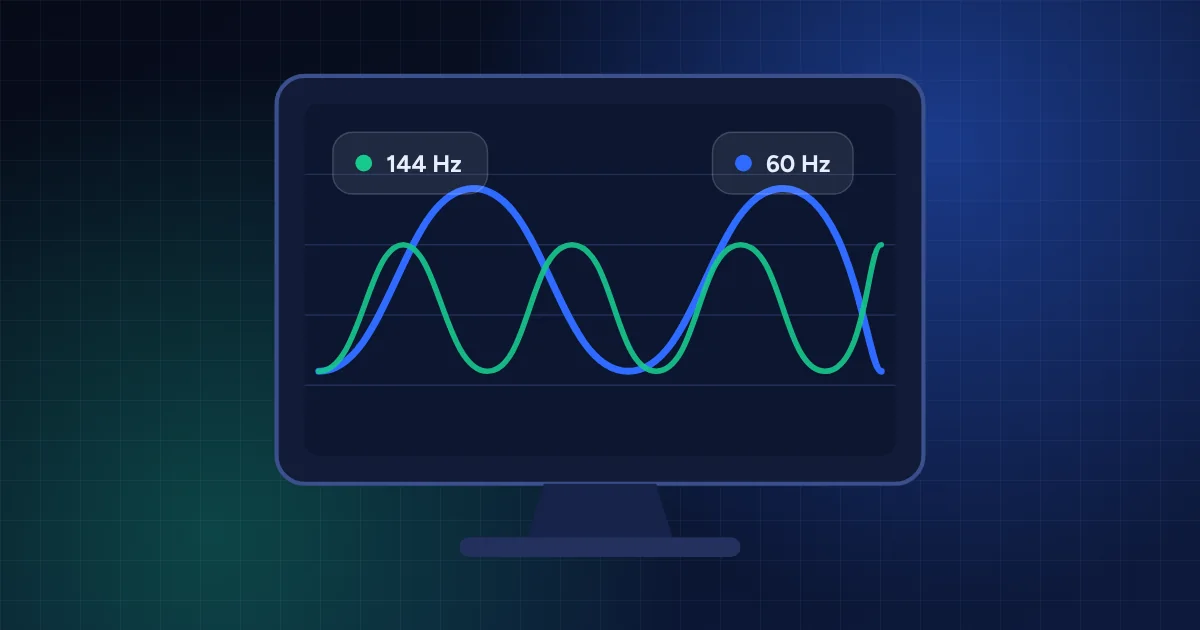
Refresh rate is how many times per second the screen draws a new image, measured in hertz (Hz). A 60Hz screen updates 60 times a second, while a 144Hz screen updates 144 times. As a result, motion looks smoother and the mouse feels more responsive.
However, the box says what the monitor can do, not what it is doing. So the only easy way to confirm you’re getting what you paid for is to check monitor refresh rate with a quick test. Microsoft explains the Windows setting in its Windows help pages.
How to Check Monitor Refresh Rate and Fix 60Hz
Free, no sign-up
Try the Hz tester now
What Your Result Means When You Check Monitor Refresh Rate
| Result | What it means | Next step |
|---|---|---|
| About 60 | Running at 60Hz | Change the Windows setting, check the cable |
| About 120–165 | High refresh rate is active | Nothing, you’re getting it |
| Jumps around a lot | Browser busy or power saving | Close tabs, plug in the laptop, test again |
| Lower than expected | Frame cap or wrong port | Check GPU settings and the port |
Get the Smoothest Picture
Is 144Hz Worth It Outside Gaming?
Yes, many people notice it straight away when scrolling web pages and documents, and the mouse feels lighter. For competitive games, a high refresh rate also makes it easier to track movement, which pairs well with a faster reaction time. So check monitor refresh rate again after every driver or cable change, so you’re sure it’s still on.
Check Monitor Refresh Rate: Frequently Asked Questions
01. Why does my 144Hz monitor show 60Hz?
Usually because the Windows refresh rate setting is still at 60Hz, the cable or port doesn’t support 144Hz, or the monitor is connected to the motherboard instead of the graphics card.
02. Is an online refresh rate test accurate?
It’s a good guide, because it measures how often the browser can draw frames, which matches your screen’s refresh rate when the system isn’t busy. Close other tabs for the best result.
03. Does HDMI support 144Hz?
It depends on the HDMI version of your monitor, graphics card and cable, and on the resolution. For that reason, DisplayPort is usually the simplest choice for high refresh rates.
04. Can I test the refresh rate on a phone?
Yes. Many phones have 90Hz or 120Hz screens, and the test shows whether the high rate is active. However, some phones lower it in battery saver mode.
Need help beyond a quick test?
DgTrick also builds fast WordPress websites and GoHighLevel systems for growing businesses. Meanwhile, every one of our tools is free.