Face Blur Tool
Use this free face blur tool to find and blur every face in a photo automatically. Click a face to keep it sharp, or drag to blur number plates and other details by hand.
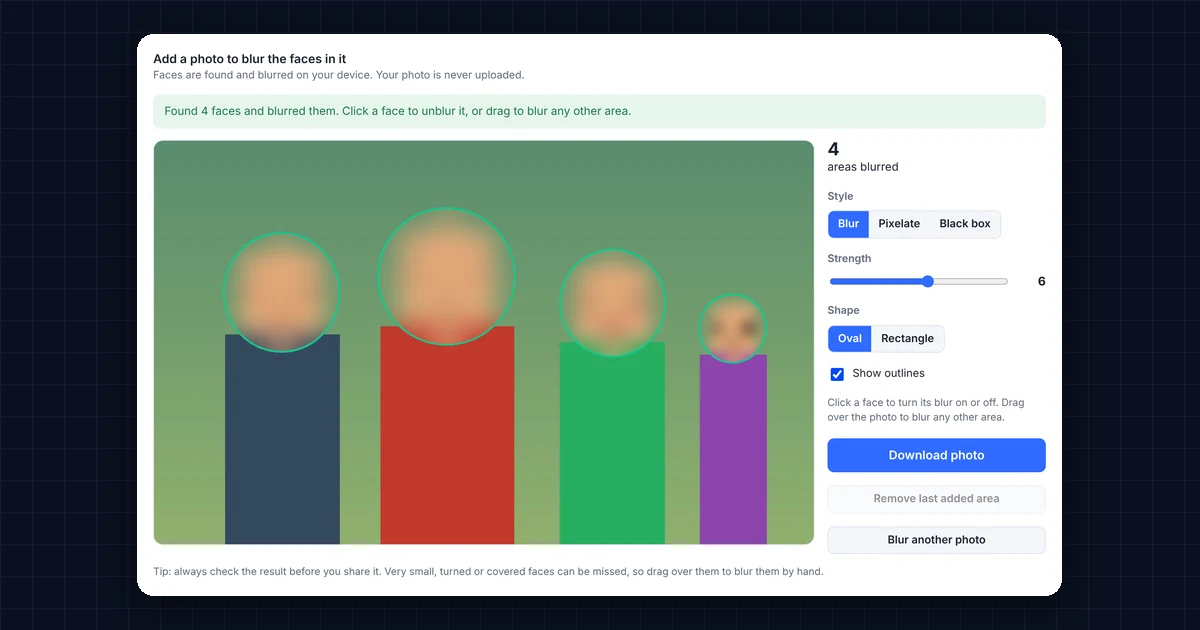
Add a photo to blur the faces in itFaces are found and blurred on your device. Your photo is never uploaded.
Style
Strength
Shape
Click a face to turn its blur on or off. Drag over the photo to blur any other area.
Tip: always check the result before you share it. Very small, turned or covered faces can be missed, so drag over them to blur them by hand.
How to Use the Face Blur Tool
- Add your photo. First, drop a JPG, PNG or WebP photo onto the box above, click it to choose one, or paste an image with Ctrl+V.
- Let it find the faces. The tool finds every face it can see and blurs it straight away, usually in about a second.
- Adjust the result. Click a face to unblur it, for example your own. Or drag over any other area, such as a number plate, to blur it by hand.
- Download your photo. Finally, choose Blur, Pixelate or Black box, set the strength, and then download the photo at full size.
Why Use a Face Blur Tool?
Posting a photo with strangers, children or customers in it can cause privacy problems. In fact, in many countries you need permission to publish a clearly recognizable photo of someone. So blurring faces is a simple way to share photos safely. For example, you can use it for:
- Social media posts with people in the background, such as at events, schools or markets.
- Real estate and property photos where tenants, neighbors or family photos are visible.
- Screenshots of video calls before you share them in a report or presentation.
- News, reviews and blog posts that show the public, such as street photos.
- Number plates, name badges and documents, which you can blur by dragging over them.
Face Blur Tool Styles: Blur, Pixelate or Black Box?
| Style | How it looks | Best for |
|---|---|---|
| Blur | Soft and natural | Social media and blog photos |
| Pixelate | Square mosaic, like on TV | News-style photos and screenshots |
| Black box | Solid cover with nothing visible | Sensitive documents and maximum privacy |
For real privacy, use a high strength or the black box. A light blur can sometimes still let people recognize a face they already know.
Is This Face Blur Tool Private?
Yes. The faces are found by a small AI model that runs inside your browser, so your photo is never uploaded to a server. As a result, it is safe to use even for private family photos. The tool uses Google’s open-source MediaPipe Face Detector (see MediaPipe Face Detector).
Frequently Asked Questions
Is this face blur tool free?
Yes. It’s completely free, with no sign-up, no watermark and no limit on how many photos you blur.
What if the face blur tool misses a face?
Very small, turned or partly covered faces can be missed. In that case, simply drag a box over the face to blur it by hand.
Can the face blur tool keep one face sharp?
Yes. Click any blurred face to turn its blur off, and click again to turn it back on.
Does it reduce the photo quality?
No. Only the blurred areas change, and the photo downloads at its original size, up to 6000 pixels on the longest side.
Can I blur faces in a video?
Not yet. This tool works with photos. For a video, you can blur a screenshot of each important frame.
Need a website or CRM set up for you?
Besides free tools, DgTrick also builds WordPress websites and GoHighLevel automations for growing businesses, so tell us what you need.