Screen Resolution Checker
What is my screen resolution? This free screen resolution checker shows it instantly, as well as your viewport size, scaling, aspect ratio and color support, so you can copy everything with one click.
All display details
Pixel density (PPI) calculator
Websites cannot read your screen’s physical size. Enter the diagonal size from your monitor’s specs or box.
Values update live when you resize the window, zoom, or move the browser to another monitor. Nothing is sent to our server.
What Is My Screen Resolution? Your Results Explained
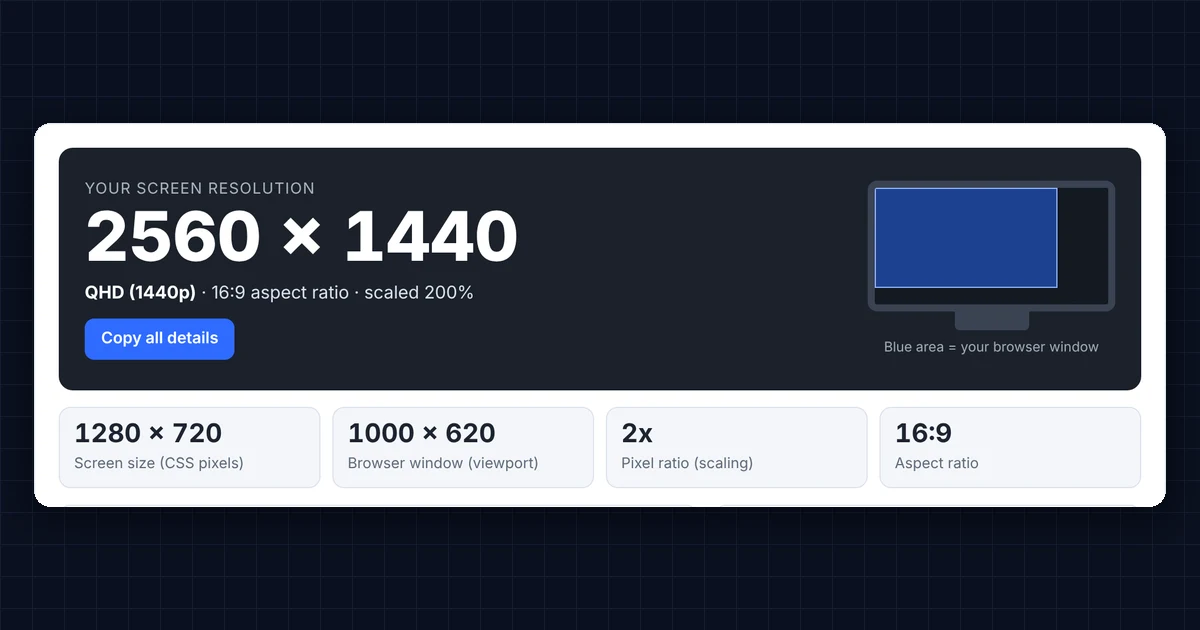
Here is what each result in the screen resolution checker means (see display resolution on Wikipedia):
- Screen resolution (physical): first of all, the number of real pixels on your screen, width × height. In other words, it is the figure on your monitor’s spec sheet, such as 1920 × 1080 or 2560 × 1440.
- Screen size (CSS pixels): the size websites “see” after scaling, which is often smaller. For example, a 4K screen at 150% scaling shows 2560 × 1440 here.
- Browser window (viewport): the area inside your browser that shows web pages. As a result, web designers use it to build responsive layouts.
- Pixel ratio (scaling): how many physical pixels make up one CSS pixel (see devicePixelRatio on MDN). So 1x means no scaling, 1.25x means 125%, and 2x is typical for Retina and high-DPI screens. Browser zoom also changes this number.
- Aspect ratio: the shape of the screen, such as 16:9 (most monitors and TVs), 16:10 (many laptops and MacBooks) or 21:9 (ultrawide).
- Available screen: the screen size, but without the taskbar or dock.
- Color gamut and HDR: lastly, whether your screen and browser support wide colors (Display P3) and high dynamic range.
Why the Screen Resolution Checker Differs from Your Monitor Specs
In most cases, the reason is display scaling. In order to keep text readable, Windows and macOS enlarge everything on high-resolution screens. For example, a laptop with a 1920 × 1080 screen at 125% scaling shows 1536 × 864 CSS pixels. Therefore, the screen resolution checker multiplies the CSS size by the pixel ratio to work out your physical resolution, so the main number should match your specs.
If the main number is still lower than your monitor’s native resolution, your computer may use a lower resolution. So check these settings:
- Windows 11: first, open Settings → System → Display → Display resolution and choose the option marked “(Recommended)”.
- Mac: similarly, open System Settings → Displays and choose “Default for display”, or “More Space” for a higher effective resolution.
Browser zoom also affects the pixel ratio. So, to get an accurate reading, press Ctrl + 0 (Windows) or Cmd + 0 (Mac) to reset zoom to 100%.
Common Resolutions the Screen Resolution Checker Shows
- HD (1366 × 768): mostly older and budget laptops.
- Full HD (1920 × 1080, 1080p): still the most common desktop and laptop resolution.
- WUXGA (1920 × 1200): 16:10 monitors as well as business laptops.
- QHD (2560 × 1440, 1440p): especially popular for 27-inch gaming and office monitors.
- UltraWide QHD (3440 × 1440): typically 34-inch ultrawide monitors.
- 4K UHD (3840 × 2160): 4K monitors and, increasingly, TVs.
- Retina (2560 × 1664, 2880 × 1864, 3024 × 1964): finally, MacBook Air and MacBook Pro displays.
Pixel Density (PPI) in the Screen Resolution Checker
Pixel density, measured in pixels per inch (PPI), tells you how sharp a screen looks (see pixel density on Wikipedia). In addition, it depends on both the resolution and the screen size. However, websites cannot read your screen’s physical size, so enter it in the calculator to see your PPI.
- Around 90 to 110 PPI: for example, a 24-inch 1080p or 27-inch 1440p monitor, sharp at normal desk distance.
- Around 140 to 165 PPI: a 27-inch 4K monitor or a 1080p laptop. As a result, these screens look very sharp and usually run at 125 to 150% scaling.
- Over 200 PPI: finally, Retina laptops, tablets and phones, where you cannot see individual pixels.
Who Uses a Screen Resolution Checker?
- Web designers and developers first and foremost check how a site looks at different viewport sizes and pixel ratios.
- Support teams also ask customers for their screen details. In that case, the Copy all details button copies everything for a ticket.
- Buyers similarly check that a new monitor or a used laptop runs at its advertised resolution.
- Gamers, meanwhile, match their in-game resolution to the screen’s native resolution for the sharpest picture.
Frequently Asked Questions
How do I find my screen resolution?
Look at the large number at the top of this page, which shows your physical screen resolution, for example 1920 × 1080. Alternatively, you can find it in your computer’s display settings.
Why does the screen resolution checker show a smaller resolution than my monitor?
Basically, your operating system scales the display to keep text readable. So the CSS size shows the scaled size, while the main figure multiplies it by the pixel ratio to give your real resolution.
What is the difference between screen size and viewport size?
In short, screen size is the whole display. By contrast, viewport size is only the part of the browser window that shows the web page, without toolbars, tabs and the taskbar.
Can the screen resolution checker tell me my screen size in inches?
Unfortunately, no website can measure physical screen size, because browsers do not share it. Instead, enter the diagonal size from your monitor’s specs in the PPI calculator to work out pixel density and screen dimensions.
How do I check the resolution of my second monitor?
First, drag this browser window onto the second monitor. The results then update automatically for the screen the window is on.
Is 1920 × 1080 the same as 1080p and Full HD?
Yes, indeed. In fact, 1920 × 1080, 1080p and Full HD (FHD) all describe the same resolution.
Need a website or CRM set up for you?
Besides free tools, DgTrick also builds WordPress websites and GoHighLevel automations for growing businesses, so tell us what you need.