Gamepad Tester
Use this free gamepad tester to check your controller online. See every button, trigger and stick live, measure stick drift, and test vibration.
Test your game controllerWorks with Xbox, PlayStation, Switch Pro and most USB or Bluetooth gamepads.
Plug it in with USB or pair it with Bluetooth, then press a button. Browsers only show controllers after a button is pressed, for privacy.
Left stick —
Right stick —
All buttons
All axes
Everything runs in your browser. The dashed orange circle shows how far each stick drifts when you are not touching it. Labels follow the Xbox layout; on PlayStation, A = Cross, B = Circle, X = Square, Y = Triangle.
How to Use This Gamepad Tester
- Connect your controller. First, plug it in with a USB cable or pair it with Bluetooth.
- Press any button. Browsers only show a controller after you press a button, for privacy reasons.
- Press every button once. Next, work through all the buttons. Each working button gets a green outline on the diagram and a tick in the button list.
- Press the triggers slowly. The bars above the diagram should then fill smoothly from 0 to 100%.
- Move both sticks. After that, move each stick in full circles, let go, and leave the controller alone for a few seconds so the gamepad tester can measure drift.
- Test vibration. Finally, press Test vibration to check the rumble motors (Chrome and Edge support this).
Reading Your Gamepad Tester Results
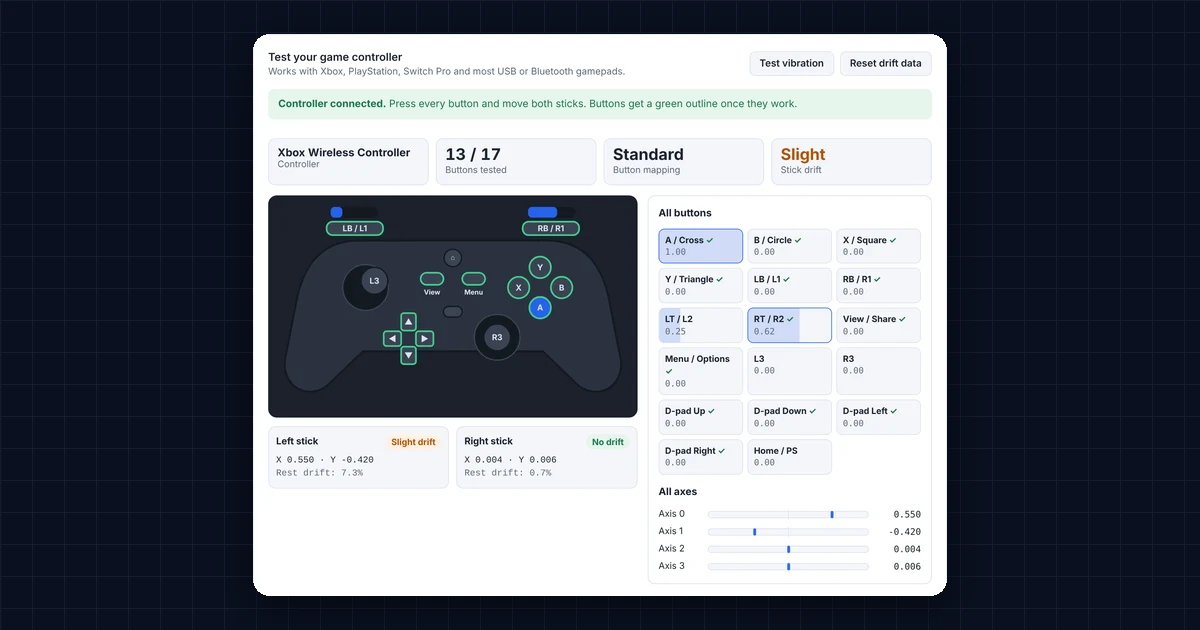
The gamepad tester reads your controller through the browser’s Gamepad API. Here is what each result means:
- Buttons tested: how many buttons have worked so far.
- Button mapping: “Standard” means the browser recognizes the controller’s layout, so the diagram matches it. On the other hand, “Non-standard” means the tool lists the buttons by number instead (see the W3C Gamepad standard).
- Button values: digital buttons show 0 or 1. By contrast, triggers show values between 0.00 and 1.00, depending on how far you press.
- Axes: each stick has two axes, X (left/right) and Y (up/down), from −1 to +1. At rest, both should stay close to 0.
- Stick drift: how far a stick reads from the center when nobody touches it. In addition, the dashed orange circle shows this on the diagram.
Gamepad Tester Stick Drift Results Explained
Stick drift happens when a joystick sends movement even though you do not touch it. For example, in a game your character walks on its own or the camera slowly turns. Wear, dust or a weakening spring in the stick’s sensor usually causes it.
- Under 5%: no drift. Games ignore small values like this with a “dead zone”.
- 5 to 12%: slight drift. Usually, raising the dead zone in the game’s settings fixes it.
- Over 12%: drift that most games will notice.
How to fix stick drift the gamepad tester found
- Recalibrate the controller. On Windows, search for “Set up USB game controllers”, select your controller and choose Properties → Settings → Calibrate. Steam also has a calibration option in its controller settings.
- Clean the stick. Next, turn the controller off, push the stick to one side and spray a short burst of compressed air around its base. Then rotate the stick in circles and repeat on each side.
- Raise the dead zone in your game’s settings, just above the drift value the gamepad tester shows.
- Update the firmware. Use the Xbox Accessories app for Xbox controllers, or the console itself for PlayStation and Switch controllers.
- Repair or replace it. Finally, if drift stays high after cleaning, the stick module is worn. So check the warranty, because some brands repair drifting controllers.
Gamepad Tester Not Detecting Your Controller?
- Press a button. The controller does not appear until you do.
- Try a different cable. Many USB cables only charge and do not carry data.
- Use Chrome or Edge. They support the most controllers, while Firefox and Safari work with fewer models.
- Close Steam or DS4Windows if the controller shows up twice or as a different model, because these programs can change how it appears.
- For PlayStation controllers on Bluetooth, hold Share and the PS button until the light flashes, and then pair it in your computer’s Bluetooth settings.
- For Switch Pro controllers, press the small sync button on top to pair. Alternatively, use a wired connection if Bluetooth is unreliable.
Button Names in the Gamepad Tester
The diagram uses Xbox labels. On a PlayStation controller, however, A = Cross, B = Circle, X = Square and Y = Triangle, while LB/RB are L1/R1 and LT/RT are L2/R2. On a Nintendo controller, the A/B and X/Y positions are swapped compared with Xbox, so the button that lights up is the one in that position. You can read more about gamepads on Wikipedia.
Frequently Asked Questions
Does the gamepad tester work with a PS5 DualSense controller?
Yes. Connect it by USB or Bluetooth and press a button. In Chrome and Edge, the tester detects it with the standard layout, and the touchpad click shows as an extra button.
Can I test two controllers at once?
Yes. Connect both and press a button on each. Then a tab appears for each controller, so you can switch between them.
Why doesn’t vibration work in the gamepad tester?
Vibration only works in browsers that support it, mainly Chrome and Edge, and not with every controller model. So if the button is grey, your browser does not support rumble for this controller.
What is a good dead zone?
Set it just above your controller’s drift value. For example, if the tool shows 6% drift, a dead zone of 8 to 10% stops it. Too large a dead zone, however, makes small movements hard.
Can I run the gamepad tester on my phone?
Yes, on Android with Chrome. Connect the controller through Bluetooth or a USB-C adapter, open this page and press a button. On iPhone and iPad, support depends on the Safari version.
Need a website or CRM set up for you?
Besides free tools, DgTrick also builds WordPress websites and GoHighLevel automations for growing businesses, so tell us what you need.