Is your keyboard not working? Maybe no keys respond at all, some keys stopped typing, or the wrong letters appear on screen. The good news is that most keyboard problems are caused by settings, connections or drivers, not a broken keyboard. In this guide, you’ll find 9 fixes for Windows and Mac, starting with the quickest ones, so you can get typing again in a few minutes.
Key takeaways
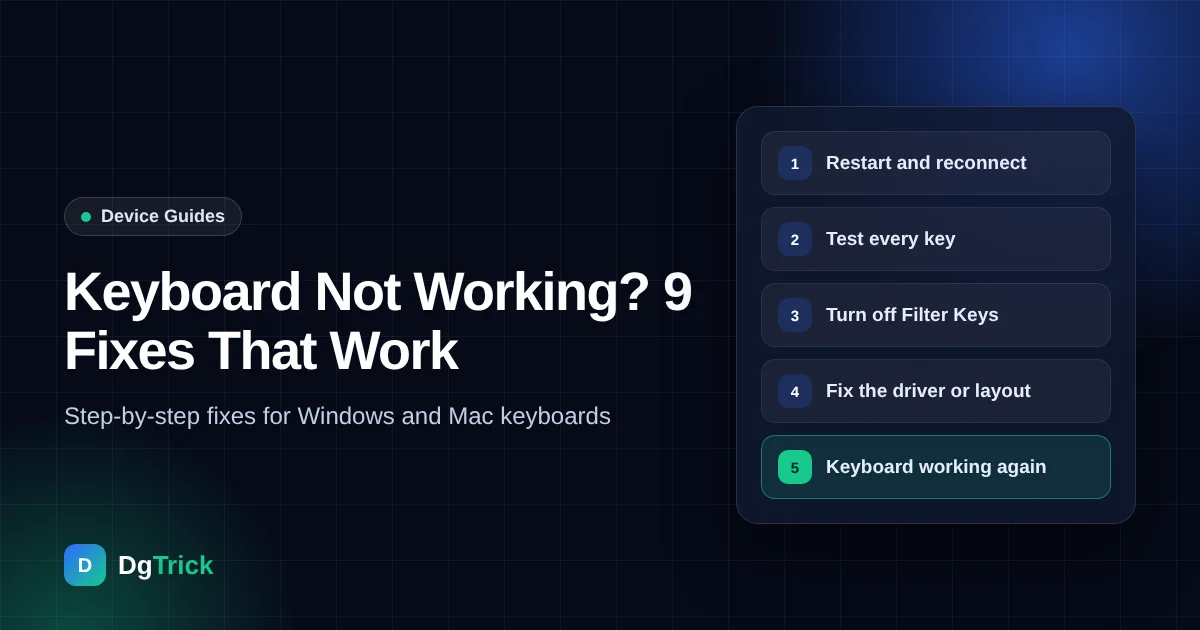
- Restart and reconnect first. A loose cable, flat battery or frozen app causes many keyboard problems.
- Test every key with a free online keyboard tester to see exactly which keys fail.
- On Windows, Filter Keys can make keys seem dead. On Mac, check Slow Keys.
- If the keyboard still fails on another computer, the problem is the hardware, not your settings.
Why Is My Keyboard Not Working?
Before you start fixing, look at what the keyboard is actually doing. The symptom points to the cause:
No keys work
Connection or driver
Try fixes 1, 2 and 6
Some keys fail
Dirt or worn keys
Try fixes 3 and 8
Wrong characters
Layout or lock keys
Try fixes 5 and 7
Also check whether only your laptop keyboard fails or an external keyboard too. If an external keyboard works fine, the laptop’s built-in keyboard or its driver is the likely problem.
9 Fixes for a Keyboard Not Working
Work through these fixes in order. After each one, test your keyboard again before you move on.
Fix 1
Restart your computer
It sounds simple, but a restart clears frozen apps and reloads the keyboard driver. If you can’t type, use the mouse: on Windows, click Start → Power → Restart. On a Mac, click the Apple menu → Restart. Also check that the problem isn’t just one app. For example, click into a different window, such as your browser’s address bar, and try typing there.
Fix 2
Check the connection
Next, make sure the keyboard is actually connected:
- Wired keyboard: unplug it and plug it into a different USB port, directly on the computer rather than through a hub or monitor.
- Wireless keyboard with a USB receiver: replace or charge the batteries, check that the power switch is on, and move the receiver to a port closer to the keyboard.
- Bluetooth keyboard: turn Bluetooth off and on again. If that doesn’t help, remove the keyboard from your Bluetooth devices and pair it again.
Fix 3
Test every key online
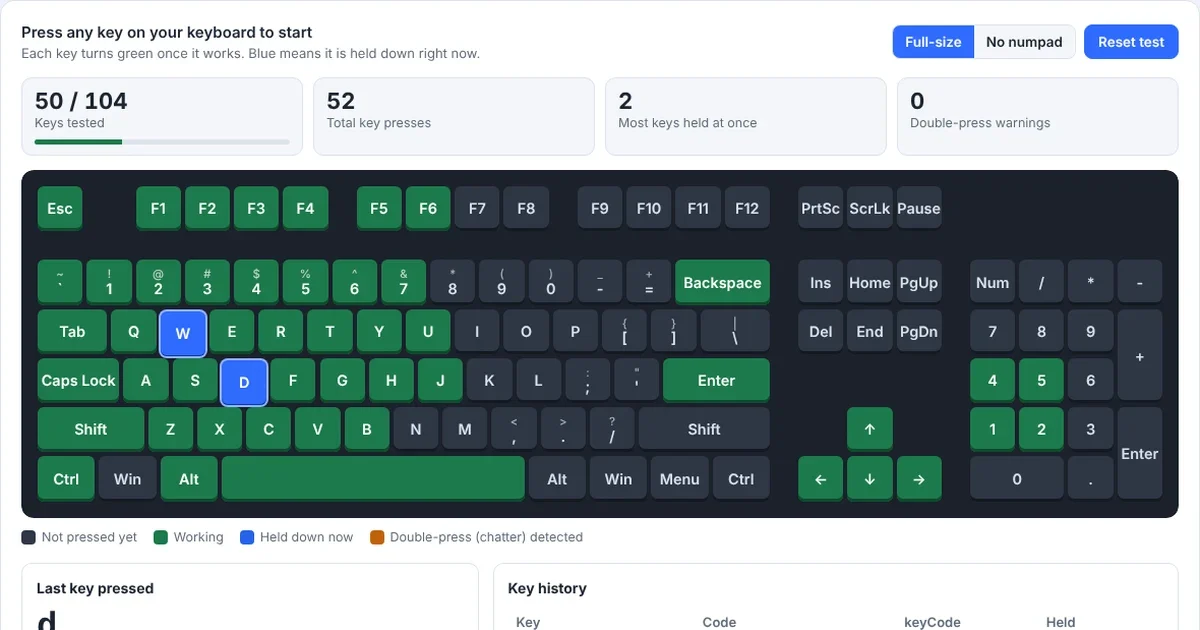
Now find out exactly which keys work. Open the free DgTrick Keyboard Tester and press every key. Each key turns green when it works, so you can quickly spot dead keys, stuck keys and keys that type twice.
Fix 4
Turn off Filter Keys or Slow Keys
Accessibility settings can make a keyboard seem broken. For example, Filter Keys ignores short key presses, so keys only work when you hold them down. It often turns on by accident when you hold the right Shift key for 8 seconds.
Windows
Open Settings → Accessibility → Keyboard, then turn off Filter keys, Sticky keys and Toggle keys.
Mac
Open System Settings → Accessibility → Keyboard, then turn off Slow Keys and Sticky Keys.
More details: Microsoft’s keyboard accessibility guide and Apple’s keyboard accessibility settings.
Fix 5
Check the keyboard language and layout
If keys work but type the wrong characters, for example @ and ” are swapped or Z and Y are switched, the wrong keyboard layout is selected.
Windows
Press Windows key + Space to switch layouts, or go to Settings → Time & language → Language & region and remove layouts you don’t use.
Mac
Go to System Settings → Keyboard → Text Input → Edit, and choose the right input source for your keyboard.
Fix 6
Reinstall the keyboard driver or update your system
Windows
Right-click Start → Device Manager, expand Keyboards, right-click your keyboard and choose Uninstall device. Then restart, and Windows installs the driver again automatically.
Mac
Macs don’t have separate keyboard drivers. Instead, install the latest update in System Settings → General → Software Update.
Tip: gaming keyboards often need their own app, such as Logitech G Hub or Razer Synapse. If the keyboard stopped working after an update, update or reinstall that app too.
Fix 7
Check Num Lock, Fn Lock and keyboard lock keys
Many laptops have a lock key that changes what keys do. For example, if the number pad doesn’t work, press Num Lock. If F1 to F12 change the volume instead, press Fn + Esc (on many laptops) to toggle Fn Lock. Some gaming keyboards also have a “Game Mode” key that turns off the Windows key, so check for a lock light on the keyboard.
Fix 8
Clean the keyboard
Crumbs and dust under a key can stop it from pressing down fully. First, turn off the computer or unplug the keyboard. Then turn it upside down, tap it gently and blow compressed air between the keys at an angle. If you spilled a drink, unplug or shut down the computer right away, turn the keyboard upside down and let it dry for at least 24 hours before using it again.
Fix 9
Find out if the keyboard is broken
Finally, connect the keyboard to another computer, or connect a different keyboard to yours. If your keyboard fails on every computer, the keyboard itself is faulty, so it needs repair or replacement. However, if a different keyboard also fails on your computer, the problem is on the computer side, such as a USB port, a Windows setting or, on a laptop, the internal keyboard connection.
Keyboard Not Working: Quick Fix Table
| Problem | Most likely fix |
|---|---|
| No keys work at all | Reconnect, change USB port or batteries, restart |
| Keys only work when held down | Turn off Filter Keys (Windows) or Slow Keys (Mac) |
| Wrong characters appear | Switch to the right keyboard layout |
| Number pad doesn’t type numbers | Press Num Lock |
| One or two keys are dead | Clean under the keys, then test them online |
| A key types twice | Clean the switch; a worn switch may need replacing |
| Stopped after an update | Reinstall the keyboard driver or keyboard app |
How to Type While Your Keyboard Is Not Working
If you need to type something urgently, use the on-screen keyboard:
- Windows: open Settings → Accessibility → Keyboard and turn on On-screen keyboard.
- Mac: open System Settings → Accessibility → Keyboard and turn on Accessibility Keyboard.
Keyboard Not Working: Frequently Asked Questions
Why did my laptop keyboard suddenly stop working?
The most common causes are a frozen driver after an update, Filter Keys turning on by accident, or a lock key. Restart first, then work through fixes 4 to 7.
How do I test if my keyboard is working?
Open an online keyboard tester and press each key. Working keys light up, so you can see straight away which ones don’t respond.
Why do some keys work and others don’t?
Usually because of dirt under the keys, a spill or worn switches. If a whole row stops working together, the keyboard’s internal circuit may be damaged.
Can a virus stop my keyboard from working?
It’s possible but rare. Settings, drivers and connections are far more common causes. If you’re worried, run a full scan with Windows Security or your antivirus.
Test Your Keyboard Now
Find out which keys work
The free DgTrick Keyboard Tester shows every key on screen, so you can check for dead keys, double typing and ghosting in seconds. You can also check your other devices with the Mouse Click Test and the rest of our free device tests.