Image to Text Converter
Use this free image to text converter to copy text from screenshots, photos and scanned pages. It reads English, Urdu, Arabic and 15 more languages, and your images never leave your device.
Add an image to copy the text from itText is read on your device. Your images are never uploaded.
The text from your images will appear here, ready to copy or edit.
Tip: sharp, straight, well-lit images give the best results. Changing the language reads your images again.
How to Convert an Image to Text
- Add your image. First, drop a screenshot, photo or scanned page onto the box above, click it to choose files, or paste a screenshot with Ctrl+V. You can add several images at once.
- Choose the language. English is selected by default. If your image has Urdu, Arabic, Hindi or another language, pick it from the list before you add the image.
- Check the text. The image to text converter reads your image in a few seconds. Then you can fix any small mistakes right in the text box.
- Copy or download. Finally, click Copy to paste the text anywhere, or download it as a .txt file.
The first time you use it, your browser downloads the text reader and the language file, which are a few megabytes. After that, it starts much faster.
What Can You Do With Image to Text?
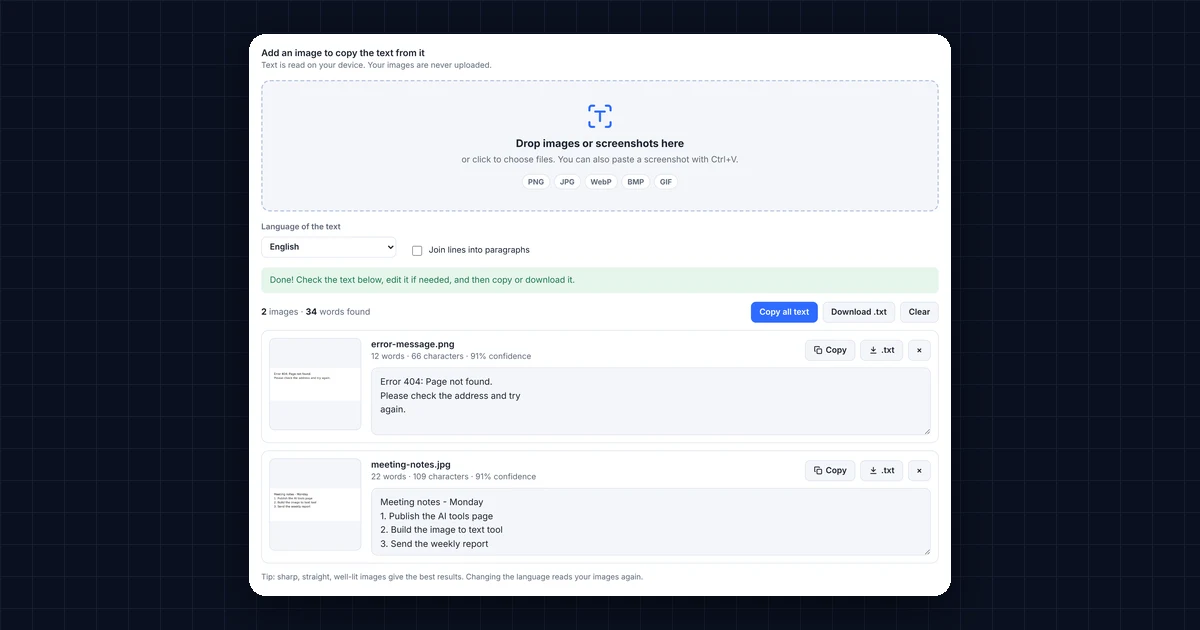
Retyping text from a picture is slow and easy to get wrong. Instead, this tool, also called OCR (optical character recognition), reads the letters for you. For example, you can:
- Copy text from a screenshot, such as an error message, a chat or a social media post.
- Turn a photo of a document into text, for example a letter, a receipt or a page from a book.
- Grab notes from a slide or whiteboard after a class or meeting.
- Copy contact details from a business card, flyer or “For Sale” sign.
- Get text out of a scanned PDF page by taking a screenshot of it first.
Is This Image to Text Converter Private?
Yes. Most online OCR sites upload your image to their server. This one works differently, because the text recognition runs inside your own browser. As a result, your screenshots and documents never leave your device, which matters for private messages, bills and personal paperwork.
The tool uses Tesseract, a well-known open-source OCR engine first developed at HP and later improved by Google (see Tesseract on GitHub).
Tips for Better Image to Text Results
| Problem | How to fix it |
|---|---|
| Letters come out wrong | Use a sharper image, or zoom in before you take the screenshot. |
| Nothing is found | Make sure the right language is selected, and that the text isn’t too small. |
| Photo of a page is messy | Take the photo straight on, in good light, without shadows. |
| Lines are broken in the middle of sentences | Tick “Join lines into paragraphs”. |
| Handwriting isn’t recognized | OCR works best on printed text. Neat block letters work better than joined handwriting. |
Frequently Asked Questions
Is this image to text converter free?
Yes. It’s completely free, with no sign-up, no watermark and no limit on how many images you convert.
Are my images uploaded to a server?
No. The text is read inside your browser, so your images never leave your computer or phone.
Which languages does it support?
It supports English, Urdu, Arabic, Hindi, Bengali, Spanish, French, German, Portuguese, Italian, Dutch, Turkish, Russian, Indonesian, Vietnamese, Chinese, Japanese and Korean. You can also choose English and Urdu together for mixed text.
Can it read handwriting?
Only partly. It reads printed and typed text very well, but results with handwriting depend on how neat it is.
Can I convert a PDF to text?
Not directly. However, you can take a screenshot of each PDF page and add it here, which works well for scanned PDFs.
Does it work on my phone?
Yes. It works in Chrome, Safari, Edge and Firefox on phones, tablets and computers, and you can pick a photo straight from your camera roll.
Need a website or CRM set up for you?
Besides free tools, DgTrick also builds WordPress websites and GoHighLevel automations for growing businesses, so tell us what you need.